

Inference with Claudie
In this blog post, we’ll walk through how to connect an on-premise server, equipped with custom hardware, with the AWS cloud provider, forming a hybrid cluster, and further use this infrastructure for running an AI workload.
Since our on-premise hardware is behind a NAT and lacks a public IP address, a requirement for being part of a Claudie infrastructure, we’ll use Tailscale to securely connect our local hardware to the rest of the infrastructure.
Prerequisite
An active AWS account enabled and access credentials as an accesskey and a secretkey. For more info, see docs.
You can use any provider listed here. If your preferred provider isn’t listed, let us know and we’ll add it.Active Tailscale account (free plan is all we need)
Kind or minikube binaries to run Claudie management cluster (can be deployed on a local machine)
On-premise hardware with an Ubuntu 24.04 LTS server with root access
kubectl installed for managing Kubernetes clusters.
Setting up environment
First, we need to deploy Claudie in our kind-based Kubernetes management cluster (referred to as the management cluster from here on).
$ kind create cluster --name mgmt-cluster
Installing Claudie is straightforward — just run the following commands:
$ kubectl apply -f https://github.com/cert-manager/cert-manager/releases/download/v1.12.0/cert-manager.yaml
$ kubectl apply -f https://github.com/berops/claudie/releases/download/v0.9.14/claudie.yaml
After a few seconds, you should see running pods in the management cluster
kubectl get pod -n claudie
NAME                                READY   STATUS    RESTARTS   AGE
ansibler-66f6b88fb5-wdzz4           1/1     Running   0          1m
builder-796f74f85f-8k4np            1/1     Running   0          1m
claudie-operator-5db8f6bf65-vj6c4   1/1     Running   0          1m
dynamodb-6888c86497-sch9d           1/1     Running   0          1m
kube-eleven-56bd55576-6n8bl         1/1     Running   0          1m
kuber-cc7755f45-2rjp2               1/1     Running   0          1m
manager-bdcb4dc58-bn6hb             1/1     Running   0          1m
minio-0                             1/1     Running   0          1m
minio-1                             1/1     Running   0          1m
minio-2                             1/1     Running   0          1m
minio-3                             1/1     Running   0          1m
mongodb-6d59c69c99-t2w65            1/1     Running   0          1m
terraformer-6485b876d6-46znn        1/1     Running   0          1m
Since our GPU server isn’t publicly accessible, we need to establish network connectivity between the management cluster and the on-premise GPU server. To achieve this, we set up a Tailscale VPN between the two environments. This allows the management cluster to communicate with the GPU server over a private network securely. We followed this tutorial to deploy Tailscale on both the GPU server and the computer running kind with management cluster.
After installing Tailscale, we bring up the VPN by running tailscale up on each machine and completing the authentication process via the link provided in the terminal.
Once authenticated, you should see both machines, your management cluster node and the GPU server, listed in the Tailscale dashboard as connected devices.
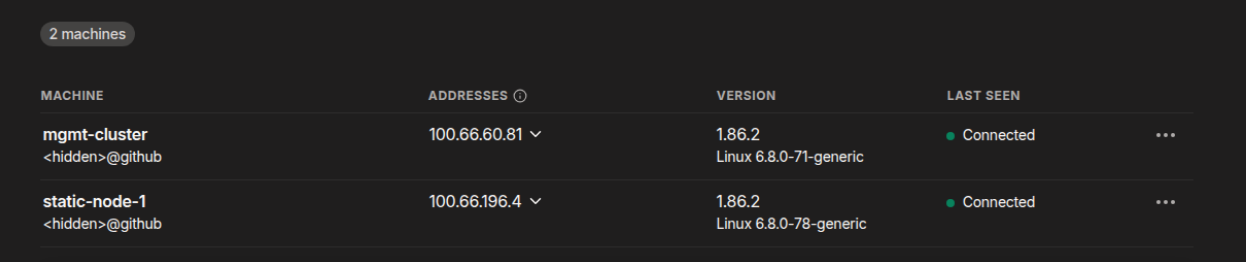
Tailscale dashboard
Next, we need to generate an SSH key pair for the root user on the management cluster and copy the public key to the GPU server. This enables passwordless SSH access between the two machines.
Once the public key is added to the GPU server’s authorized_keys, you should be able to SSH into it from the management cluster without being prompted for a password.
At this stage, Claudie is deployed on the Kubernetes management cluster, and secure SSH access to the on-premise GPU server is established. We can move on to build hybrid-cloud with AWS.
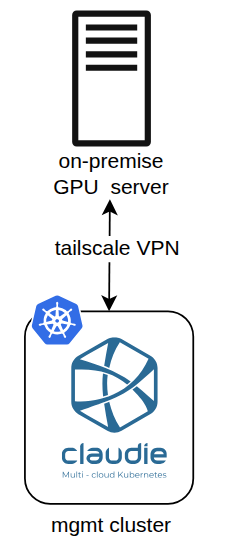
Management cluster GPU server connection
Creating a hybrid-cloud cluster with Claudie
To create a hybrid-cloud cluster, the first step is to define the credentials for accessing AWS provider within the management cluster.
$ kubectl create secret generic aws-secret \
 --namespace=claudie\
 --from-literal=accesskey='<YOUR AWS ACCESS KEY >' \
 --from-literal=secretkey='<YOUR AWS SECRET KEY>'
We also need to store the previously generated private SSH key as a Kubernetes secret in the management cluster.
$ kubectl create secret generic static-node-key \
 --namespace=claudie \
 --from-file=privatekey=private.pem
Following that, we define our infrastructure using a YAML manifest. This manifest serves as a template that Claudie will use to provision and configure the entire infrastructure.
apiVersion: claudie.io/v1beta1
kind: InputManifest
metadata:
  name: aws-hybrid-cloud
  labels:
    app.kubernetes.io/part-of: claudie
spec:
  providers:
  # Previously defined credentials to AWS
    - name: aws
      providerType: aws
      templates:
        repository: "https://github.com/berops/claudie-config"
        path: "templates/terraformer/aws"
        tag: "v0.9.15"
      secretRef:
        name: aws-secret
        namespace: claudie
  nodePools:
    dynamic:
      - name: loadbalancer
        providerSpec:
          # Name of the provider instance.
          name: aws
          # Region of the nodepool.
          region: eu-central-1
          # Zone of the nodepool
          zone: eu-central-1a
        # For testing purposes, we define only one controller node
        count: 1
        # Machine type name.
        serverType: t3.medium
        # OS image name.
        image: ami-07eef52105e8a2059

      - name: control-node
        providerSpec:
          # Name of the provider instance.
          name: aws
          # Region of the nodepool.
          region: eu-central-1
          # Zone of the nodepool
          zone: eu-central-1a
        # For testing purposes, we define only one controller node
        count: 1
        # Machine type name.
        serverType: t3.medium
        # OS image name.
        image: ami-07eef52105e8a2059

      - name: compute-node
        providerSpec:
         # Name of the provider instance.
         name: aws
         # Region of the nodepool.
         region: eu-central-1
         # Zone of the nodepool
         zone: eu-central-1a
         # Define GPU autoscaling
        autoscaler:
          min: 0
          max: 20
        # GPU machine type name.
        serverType: g4dn.xlarge
        # OS image name
        image: ami-07eef52105e8a2059
        # Define num of GPUs serverType has
        machineSpec:
          nvidiaGpu: 1
    static:
      # On-premises hardware
      - name: compute-static
        nodes:
          # The IP address assigned to our GPU server by Tailscale.
          - endpoint: "100.66.196.4"
            secretRef:
              name: static-node-key
              namespace: claudie
  kubernetes:
    clusters:
      - name: hybrid-cluster
        # Deployed Kubernetes version
        version: v1.34.0
        # Internal hybrid-cloud network
        network: 192.168.2.0/24
        pools:
          control:
            - control-node
          compute:
            - compute-node
            - compute-static
  # Loadbalancer definition
  loadBalancers:
   roles:
     # Kubernetes API
     - name: apiserver
       protocol: tcp
       port: 6443
       targetPort: 6443
       targetPools:
           - control-node
     # API endpoint for AI model
     - name: llm-api
       protocol: tcp
       # Frontend port on LB
       port: 80
       # NodePort where LB will forward traffic to backends
       targetPort: 30143
       targetPools:
           - compute-node
           - compute-static
   clusters:
     - name: apiserver-lb
       roles:
         - apiserver
         - llm-api
       # DNS configuration for our cluster
       dns:
         dnsZone: aws.e2e.claudie.io
         provider: aws
         hostname: demo-llm
       targetedK8s: hybrid-cluster
       pools:
         - loadbalancer
In the provided manifest, we specify the deployment of one loadbalancer, one Kubernetes control plane node (without GPU), and a dynamic pool of 0 to 20 AWS GPU instances that scale based on workload demands. Additionally, our on-premise GPU server is integrated into the cluster, forming a hybrid-cloud setup.
Notice that our domain will be hosted on Amazon route53 service, and the name for our AI model will be demo-llm.aws.e2e.claudie.io. For this test deployment, we omitted HTTPS.
We deploy this manifest and wait for the deployment to complete. We can monitor the cluster’s stage by running watch command:
$ kubectl -n claudie create -f manifest.yaml
$ watch 'kubectl get inputmanifests.claudie.io aws-hybrid-cloud -ojsonpath='{.status}' | jq .'
or for more detailed information, watch logs in builder pod:
k logs -f -l app.kubernetes.io/name=builder
To view the deployed hybrid cloud cluster, we export the kubeconfig and then run kubectl get nodes.
$ kubectl get secrets \
-n claudie -l claudie.io/output=kubeconfig \
-o jsonpath='{.items[0].data.kubeconfig}' | base64 -d > my-super-cluster-kubeconfig.yaml

$ kubectl --kubeconfig ./my-super-cluster-kubeconfig.yaml get nodes -o wide
NAME                      STATUS   ROLES           AGE   VERSION   INTERNAL-IP   NAME   EXTERNAL-IP   OS-IMAGE             KERNEL-VERSION    CONTAINER-RUNTIME
compute-static-01         Ready    <none>          7m51s   v1.34.0   192.168.2.2   <none>             Ubuntu 24.04.3 LTS   6.14.0-1014       containerd://1.7.27
control-node-ledzbpa-01   Ready    control-plane   10m     v1.34.0   192.168.2.1   <none>             Ubuntu 24.04.1 LTS   6.8.0-1021-aws    containerd://1.7.27
As shown in the output above, we have one AWS control plane node and our on-premise GPU server successfully connected, with communication established over the 192.168.2.0/24 network.
We don’t see any AWS GPU nodes yet because the autoscaler is configured with a minimum of 0 nodes, and so far, no workloads have been deployed.
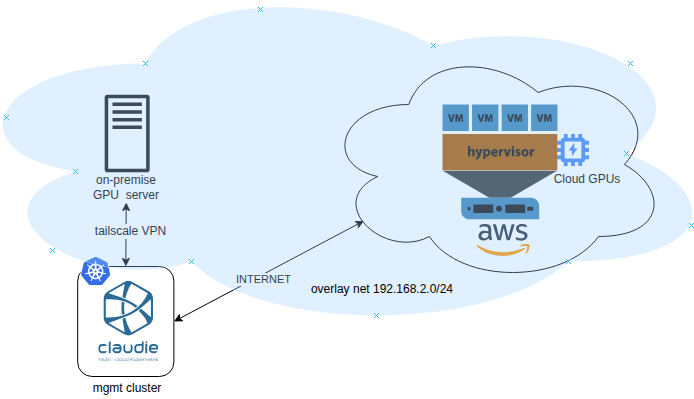
Claudie hybrid-cloud infrastructure
Deploying the GPU operator
After the InputManifest was successfully built by Claudie, we deploy the GPU Operator to discover nodes containing GPUs and will install the necessary drivers and packages to run GPU workloads.
Firstly, we create a namespace for the gpu-operator and label the namespace for the operator to set the enforcement policy to privileged.
$ kubectl create ns gpu-operator
$ kubectl label --overwrite ns gpu-operator \
   pod-security.kubernetes.io/enforce=privileged
Next, we add the Nvidia helm repository and install the operator.
$ helm repo add nvidia https://helm.ngc.nvidia.com/nvidia
$ helm repo update
$ helm install --wait --generate-name \
  -- version v25.3.4
  -n gpu-operator --create-namespace \
   nvidia/gpu-operator
We wait for the pods in the gpu-operator namespace to be ready, and after that, we can check if GPUs can be used and on which node.
$ kubectl get nodes -o json | jq -r '.items[] | {name:.metadata.name, gpus:.status.capacity."nvidia.com/gpu"}'
{
  "name": "compute-static-01",
  "gpus": "1"
}
{
  "name": "control-node-ledzbpa-01",
  "gpus": null
}
From the output above, we can see that the GPU Operator correctly identifies our on-premises node that has one GPU installed.
Install Kserve
For deploying and testing machine learning models on Kubernetes, we will use the Kserve open-source project. With the Kserve, we will install Envoy Gateway API to manage ingress and egress traffic in Kubernetes clusters.
$ kubectl apply -f https://github.com/kubernetes-sigs/gateway-api/releases/download/v1.2.1/standard-install.yaml
$ helm install eg oci://docker.io/envoyproxy/gateway-helm --version v1.5.0 -n envoy-gateway-system --create-namespace
Then, create a GatewayClass and Gateway resource to expose the InferenceService.
apiVersion: v1
kind: Namespace
metadata:
  labels:
    kubernetes.io/metadata.name: kserve
  name: kserve
---
apiVersion: gateway.networking.k8s.io/v1
kind: GatewayClass
metadata:
 name: envoy
spec:
 controllerName: gateway.envoyproxy.io/gatewayclass-controller
---
apiVersion: gateway.networking.k8s.io/v1
kind: Gateway
metadata:
 name: kserve-ingress-gateway
 namespace: kserve
spec:
 gatewayClassName: envoy
 # Reference to the EnvoyProxy custom resource that defines NodePorts and other data plane settings
 infrastructure:
   parametersRef:
     group: gateway.envoyproxy.io
     kind: EnvoyProxy
     name: envoy-proxy
 listeners:
   - name: http
     protocol: HTTP
     port: 80
     allowedRoutes:
       namespaces:
         from: All
   - name: https
     protocol: HTTPS
     port: 443
     tls:
       mode: Terminate
       certificateRefs:
         - kind: Secret
           name: kserve-certificate
           namespace: kserve
     allowedRoutes:
       namespaces:
         from: All
 infrastructure:
   labels:
     serving.kserve.io/gateway: kserve-ingress-gateway
---
apiVersion: gateway.envoyproxy.io/v1alpha1
kind: EnvoyProxy
metadata:
  name: envoy-proxy
  namespace: kserve
  labels:
    envoy-proxy: claudie-node-port
spec:
  provider:
    type: Kubernetes
    kubernetes:
      envoyService:
        externalTrafficPolicy: Cluster
        labels:
          envoy-proxy: claudie-node-port
        type: NodePort
        patch:
          type: StrategicMerge
          value:
            spec:
              ports:
                - name: http-80
                  nodePort: 30143
                  port: 80
                  protocol: TCP
The above manifest deploys a service of type NodePort in namespace envoy-gateway-system through which traffic will be later forwarded to kserve pod on port 80.
Now we will continue by installing Kserve CRD and Kserve controller
$ helm install kserve-crd oci://ghcr.io/kserve/charts/kserve-crd \
  --version v0.15.0 \
  --namespace kserve
$ helm install kserve oci://ghcr.io/kserve/charts/kserve \
  --version v0.15.0 \
  --namespace kserve \
  --set kserve.controller.deploymentMode=RawDeployment \
  --set kserve.controller.gateway.ingressGateway.enableGatewayApi=true \
  --set kserve.controller.gateway.ingressGateway.kserveGateway=kserve/kserve-ingress-gateway \
  --set kserve.controller.gateway.domain=demo-llm.aws.e2e.claudie.io
This will deploy the kserve-controller-manager, which manages HTTPRoutes and horizontal pod autoscaling based on CPU usage. Later, we will configure it to monitor GPU utilization using KEDA.
For more details on the KServe architecture used in our setup, see the official doc.
Deploying and autoscaling LLM
To enable dynamic cluster scaling, we need to deploy GPU-based workloads. As a demonstration, we’ll deploy the Qwen2.5–0.5B-Instruct-AWQ language model, configure the cluster to monitor GPU utilization, and observe the autoscaler in action.
Create an InferenceService
Creating InferenceService will deploy the Qwen LLM model, which will be served using KServe’s Hugging Face runtime with vLLM backend for optimized performance. We will deploy InferenceService in a separate namespace called kserve-qwen.
$ kubectl create ns kserve-qwen
apiVersion: "serving.kserve.io/v1beta1"
kind: "InferenceService"
metadata:
  name: "qwen-llm"
  namespace: kserve-qwen
spec:
  predictor:
    model:
      modelFormat:
        name: huggingface
      args:
        - --model_name=qwen
      storageUri: "hf://Qwen/Qwen2.5-0.5B-Instruct-AWQ"
      resources:
        limits:
          cpu: "2"
          memory: 14Gi
          nvidia.com/gpu: "1"
        requests:
          cpu: "1"
          memory: 4Gi
          nvidia.com/gpu: "1"
After applying the InferenceService we will wait until we see a ready status. This might take a few minutes.
$ kubectl get isvc -n kserve-qwen
NAMESPACE     NAME       URL                                                       READY   PREV   LATEST   PREVROLLEDOUTREVISION   LATESTREADYREVISION   AGE
kserve-qwen   qwen-llm   http://qwen-llm-kserve-qwen.demo-llm.aws.e2e.claudie.io   True                                                                  9m48s
From the above output, we can see that InferenceService generated the URL http://qwen-llm-kserve-qwen.demo-llm.aws.e2e.claudie.io that we will later use to perform inference. However, we need to create a CNAME record in our DNS provider (AWS, in our case) that points to the A record demo-llm.aws.e2e.claudie.io.
Deploying this InferenceService, we still won’t be able to call LLM, because our Claudie Loadbalancer is using proxy protocol to keep the origin IP and port of the caller. For that reason, we will also need to enable proxy protocol in Envoy Gateway.
apiVersion: gateway.envoyproxy.io/v1alpha1
kind: ClientTrafficPolicy
metadata:
  name: client-traffic-config
  namespace: kserve
spec:
  enableProxyProtocol: true
  targetRefs:
  - group: gateway.networking.k8s.io
    kind: Gateway
    name: kserve-ingress-gateway
Once the ClientTrafficPolicy has been applied (this may take a few seconds), we can verify the inference functionality using a curl command that calls the previously created CNAME record.
$ curl -v -H "Content-Type: application/json" http://qwen-llm-kserve-qwen.demo-llm.aws.e2e.claudie.io/openai/v1/chat/completions -d @./chat-input.json
We use the following chat-input.json file as the input.
$ cat <<EOF > "./chat-input.json"
{
  "model": "qwen",
  "messages": [
    {
      "role": "system",
      "content": "You are a helpful assistant that provides long answers."
    },
    {
      "role": "user",
      "content": "What is the difference between Kubernetes Deployment and StatefulSet"
    }
  ],
  "max_tokens": 1500,
  "temperature": 0.5,
  "stream": false
}
EOF
Deploying the InferenceService, we also deployed Horizontal Pod Autoscaling. However, by default, it only monitors CPU utilization, which is not adequate for our workload.
$ kubectl get hpa -n kserve-qwen
NAME                 REFERENCE                       TARGETS       MINPODS   MAXPODS   REPLICAS   AGE
qwen-llm-predictor   Deployment/qwen-llm-predictor   cpu: 1%/80%   1         1         1          13m
Installing KEDA for GPU autoscaling
To enable cluster autoscaling based on GPU memory utilization, we’ll export metrics from the already-installed GPU Operator to Prometheus. Based on a defined memory threshold, new pods will be scheduled, which, in turn, will trigger the provisioning of a new node.
Following the KEDA installation, we add the helm repo and install charts:
$ helm repo add kedacore https://kedacore.github.io/charts
$ helm repo update
$ helm install keda kedacore/keda \
--version 2.17.2 \
--namespace keda --create-namespace
To install Prometheus, we use the kube-prometheus-stack helm repo:
$ helm repo add prometheus-community https://prometheus-community.github.io/helm-charts
$ helm repo update
$ helm inspect values prometheus-community/kube-prometheus-stack > prometheus-values.yaml
Running the above command, we created a prometheus-values.yaml file where we modify and add additional configuration for the GPU operator.
serviceMonitorSelectorNilUsesHelmValues: false

additionalScrapeConfigs: |
 - job_name: gpu-metrics
   scrape_interval: 1s
   metrics_path: /metrics
   scheme: http
   kubernetes_sd_configs:
   - role: endpoints
     namespaces:
       names:
       - gpu-operator
   relabel_configs:
   - source_labels: [__meta_kubernetes_endpoints_name]
     action: drop
     regex: .*-node-feature-discovery-master
   - source_labels: [__meta_kubernetes_pod_node_name]
     action: replace
     target_label: kubernetes_node
After that, we install kube-prometheus-stack with our additional GPU scrape config.
$ helm install prometheus-community/kube-prometheus-stack \
   --version 77.11.1 \
   --create-namespace --namespace prometheus \
   --generate-name \
   -f prometheus-values.yaml
Next, we define a ScaledObject (see KEDA documentation for more details) to specify the parameter to monitor, its threshold, and the conditions for autoscaling. For a full list of metrics available from the NVIDIA GCGM exporter, visit official NVIDIA docs.
apiVersion: keda.sh/v1alpha1
kind: ScaledObject
metadata:
  name: qwen-llm-predictor-scaled-object
  namespace: kserve-qwen
  annotations:
    scaledobject.keda.sh/transfer-hpa-ownership: "true"
spec:
  advanced:
   horizontalPodAutoscalerConfig:
     name: qwen-llm-predictor
  scaleTargetRef:
    name: qwen-llm-predictor
  minReplicaCount: 1
  maxReplicaCount: 20
  triggers:
  - type: prometheus
    metadata:
      serverAddress: http://prometheus-operated.prometheus:9090
      metricName: gpu-util
      threshold: "60"
      query: sum(avg_over_time(DCGM_FI_DEV_GPU_UTIL{pod=~"qwen-llm-predictor.*"}[30s]))
After applying ScaledObject resource, we will transfer ownership of the existing HPA to our defined ScaledObject with custom triggers.
$ kubectl get hpa -n kserve-qwen
NAME                 REFERENCE                       TARGETS       MINPODS   MAXPODS   REPLICAS   AGE
qwen-llm-predictor   Deployment/qwen-llm-predictor   cpu: 1%/80%   1         1         1          3h16m


$ kubectl apply -f  scaledobject.yaml
$ kubectl get hpa -n kserve-qwen
NAME                               REFERENCE                       TARGETS      MINPODS   MAXPODS   REPLICAS   AGE
keda-hpa-gpu-dcgm-scaled-object   Deployment/qwen-llm-predictor   0/95 (avg)   1         20        1          11m
System Behavior Under High Demand
With Claudie and the InferenceService deployed alongside a ScaledObject configured to monitor GPU memory usage per node, we can now run a workload that utilizes the GPU. This will trigger Claudie’s autoscaler to scale out by adding new nodes.
We will simulate a high workload by running the previously defined curl command in a loop from multiple clients, while monitoring events in the kserve-qwen namespace.
$ curl -v -H "Content-Type: application/json"   http://qwen-llm-kserve-qwen.demo-llm.aws.e2e.claudie.io/openai/v1/chat/completions -d @./chat-input.json

$ kubectl events  -n kserve-qwen -w

0s (x4 over 2m28s)       Normal    ScaledObjectReady              ScaledObject/qwen-llm-predictor-scaled-bject   ScaledObject is ready for scaling
0s (x2 over 34s)         Warning   FailedScheduling               Pod/qwen-llm-predictor-7ddb55c8f4-lt9gq        0/2 nodes are available: 1 Insufficient nvidia.com/gpu, 1 node(s) had untolerated taint {node-role.kubernetes.io/control-plane: }. preemption: 0/2 nodes are available: 1 No preemption victims found for incoming pod, 1 Preemption is not helpful for scheduling.
0s                       Normal    TriggeredScaleUp               Pod/qwen-llm-predictor-7ddb55c8f4-lt9gq        pod triggered scale-up: [{compute-node-dwmov7w 0->1 (max: 20)}]
By inspecting the autoscaler pod in our kind management cluster we can see that Claudie detects the need and initiates scheduling of new GPU nodes.
$ kubectl logs -f autoscaler-hybrid-cluster-qpk0iqu-6ff7fc6b88-69hpd

2025-09-26T08:28:51Z INF Got NodeGroupIncreaseSize request for nodepool by 1 cluster=hybrid-cluster-qpk0iqu module=autoscaler-adapter-hybrid-cluster nodepool=compute-node-dwmov7w
In management cluster we can verify that indeed we now have a new AWS node compute-node-dwmov7w-01.
$ kubectl --kubeconfig ./my-super-cluster-kubeconfig.yaml  get node
NAME                      STATUS   ROLES           AGE    VERSION
compute-node-dwmov7w-01   Ready    <none>          107s   v1.32.0
compute-static-01         Ready    <none>          39m    v1.32.0
control-node-4ar7hnw-01   Ready    control-plane   41m    v1.32.0
Note, adding a new auto-scheduled node may take several minutes. This process involves creating a virtual machine, installing required packages, and deploying necessary DaemonSets, such as GPU operators, CNI drivers, CSI drivers, etc..
The total provisioning time can also vary based on several factors, primarily network bandwidth and the disk performance of the attached virtual machine.
Wrapping up
In this post, we demonstrated how Claudie can be used to connect multiple nodes, whether they’re on-premise hardware or cloud-based VMs, into a single unified Kubernetes cluster.
With the help of the autocluster scheduler, we also showed how to scale up the cluster automatically. Scale down is triggered when nodes remain unneeded for more than 10 minutes. You can find more details about how autoscaling works in Claudie in this article.
